
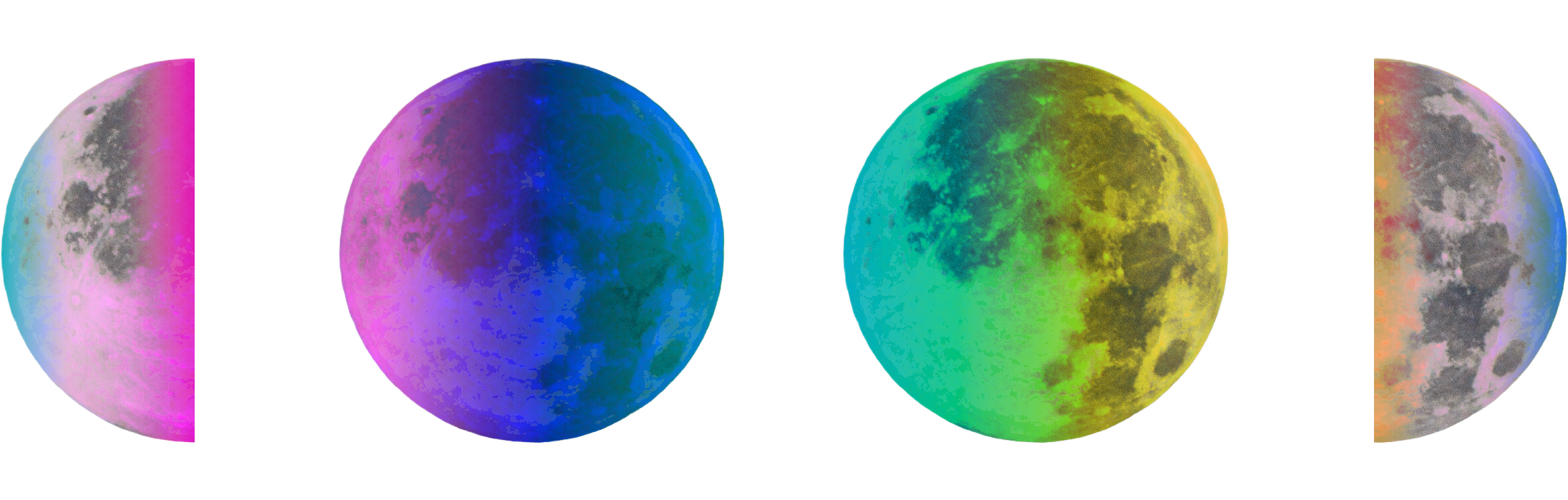

The Rhythm of the Deep-Wild Lunation
How to Add the Rhythm of the Deep-Wild Lunation Calendar
Welcome! This guide will help you add the Deep-Wild Lunation calendar to your preferred calendar app. Don't worry if you've never done this before - we'll walk through it step by step.
What You'll Get
Once installed, you'll see all 12 phases of each lunation throughout 2026, complete with:
The phase name (Deep-Wild Birth, Emerging, Recognising, etc.)
Which Egyptian neteru you're co-creating with during that phase
Exact start and end times for each phase
RECOMMENDED: Subscribe to the Calendar (Best Method)
This is the easiest way and creates a separate calendar automatically!
Important Note: This is a static calendar for 2026 only. It will not automatically update with future years. When 2027 arrives, you'll need to subscribe to a new calendar if one is created.
On iPhone or iPad:
Go to your Calendar app → Click on the Calendar icon at the bottom of the screen
Scroll down and click Add Calendar
Choose Add Subscribed Calendar
Enter this URL:
https://neoheartalchemy.squarespace.com/s/deep_wild_lunation_2026cal.ics
Tap Next or Find
The calendar will appear with the name "Rhythm of the Deep-Wild Lunation 2026"
Tap Save
What you'll see: A new calendar called "Rhythm of the Deep-Wild Lunation 2026" in turquoise, with all 144 events throughout the year.
On Mac:
Open Calendar app
Go to File → New Calendar Subscription
Enter this URL:
https://neoheartalchemy.squarespace.com/s/deep_wild_lunation_2026cal.icsClick Subscribe
You can adjust the name and color if you wish
Set Auto-refresh to "Never" (since this is a static 2026 calendar)
Click OK
On Google Calendar (Computer):
Go to Google Calendar
On the left side, next to "Other calendars," click the + (plus sign)
Select From URL
Enter this URL:
https://neoheartalchemy.squarespace.com/s/deep_wild_lunation_2026_.ics5. Click Add calendar 6. The calendar will appear in your calendar list
To remove a subscribed calendar: Simply unsubscribe from it in your calendar settings - all events disappear together.
Alternative Method: Import ics into a new calendar.
Use this method if subscription doesn't work for you, or if you prefer to import the events into a new calendar.
Note: With this method, you'll need to manually create a new calendar first if you want the events separate from your main calendar.
For Apple Calendar (Mac, iPhone, iPad)
On Mac:
Click here to download the calendar file (it's called
deep_wild_lunation_2026_.ics)Double-click the downloaded file - that's it!
Apple Calendar will open automatically
A dialog will ask which calendar to add these events to
Choose an existing calendar (we don’t recommend this) or add to a new one you created prior to clicking on the link "Deep-Wild Lunation"
Click "OK"
Alternative method:
Open the Calendar app
Go to File → Import
Select the
deep_wild_lunation_2026_.icsfileChoose which calendar to add it to
Click "OK"
On iPhone or iPad:
This will add all events to your default calendar (!)
A preview will appear - tap "Add All" at the top
Tap "Done"
What you'll see: All 144 events will appear throughout 2026, color-coded according to your calendar settings.
For Google Calendar
Method 1: Via Computer (Recommended)
Go to Google Calendar on your computer
On the left side, find the "Other calendars" section
Click the "+" (plus) button next to "Other calendars"
Select "Create new calendar"
Give it a name like "Rhythm of the Deep-Wild Lunation 2026"
Click "Create calendar"
Now click the gear icon (⚙️) in the top right → "Settings"
In the left menu, click "Import & export"
Click "Select file from your computer"
Choose the
deep_wild_lunation_2026_.icsfileUnder "Add to calendar," select your newly created "Rhythm of the Deep-Wild Lunation 2026" calendar
Click "Import"
You'll see a message confirming how many events were imported (144 events).
Method 2: Via Mobile
The easiest way on mobile is to:
Open the file on your phone
It should give you an option to "Add to Google Calendar"
Choose your Google account and confirm
Or use Method 1 on a computer, and the calendar will automatically sync to your phone.
For Outlook
On Windows or Mac:
Open Outlook
Go to your Calendar view
Click File → Open & Export → Import/Export
Select "Import an iCalendar (.ics) or vCalendar file (.vcs)"
Click Next
Browse to find
deep_wild_lunation_2026_.icsClick OK
Choose "Import" (this adds it to your main calendar)
On Outlook.com (Web):
Go to Outlook.com Calendar
Click "Add calendar" in the left sidebar
Select "Upload from file"
Click "Select file" and choose
deep_wild_lunation_2026_.icsGive it a name like "Deep-Wild Lunation 2026"
Choose a color
Click "Import"
Troubleshooting
Q: I don't see any events after importing
Make sure you selected the right calendar when importing
Check that the calendar is visible (there's usually a checkbox next to the calendar name)
Try refreshing or restarting your calendar app
Q: Can I share this calendar with others?
Yes! For Google Calendar: After importing, click the three dots next to the calendar name → "Settings and sharing" → Get a shareable link or add specific people
For Apple Calendar: Right-click the calendar → "Share Calendar"
Or simply share the .ics file with them and they can import it themselves
Q: Will this automatically update if changes are made?
No, .ics files are a one-time import. If there's an updated version, you'll need to import the new file.
Q: I want to delete it - how do I remove it?
Simply delete the calendar you created or imported it into
All 144 events will be removed together
Q: The times look wrong
The calendar uses GMT/BST times. Your calendar app should automatically convert them to your local timezone
If they seem off, check your calendar's timezone settings
Still Need Help?
If you're having trouble, feel free to reach out. Most calendar apps have similar import processes, so even if your app isn't listed here, look for options like:
"Import calendar"
"Add calendar from file"
"Subscribe to calendar"